How to Activate Your Digital Products Maker Extension
After successfully installing the extension, you will notice that it requires you to log in and activate your License upon first launch.
The activation process is designed to be secure and fast, ensuring your subscription is properly linked to your device. Here is the complete guide to activating the tool.
🔑 Activation Methods
When you click the extension icon, the welcome screen will appear. There are two main ways to activate your account:
Method 1: Quick Activation via Magic Link
If you purchased the subscription and received a direct activation link via email:
- Ensure the extension is already installed.
- Open your email and find the activation message.
- Click the button or link that says "Activate Extension".
- The link will open the tool and pass your Token automatically.
- Your account will be verified and activated in seconds, taking you to the main dashboard.
Method 2: Manual Activation via License Key
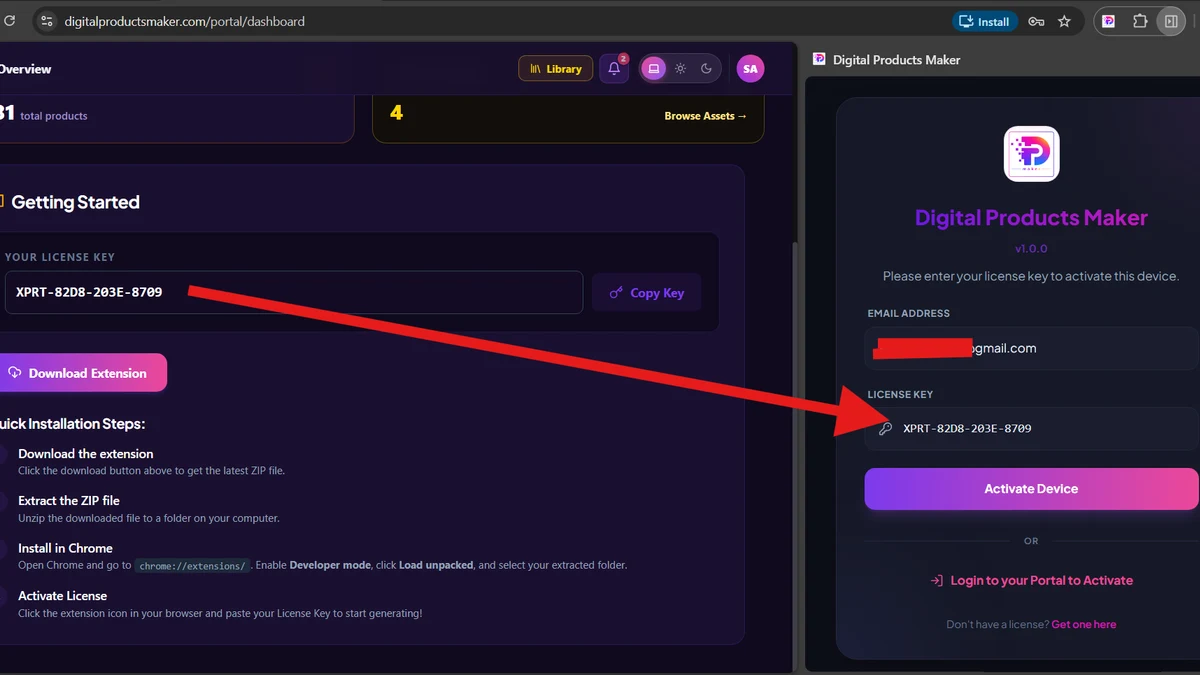
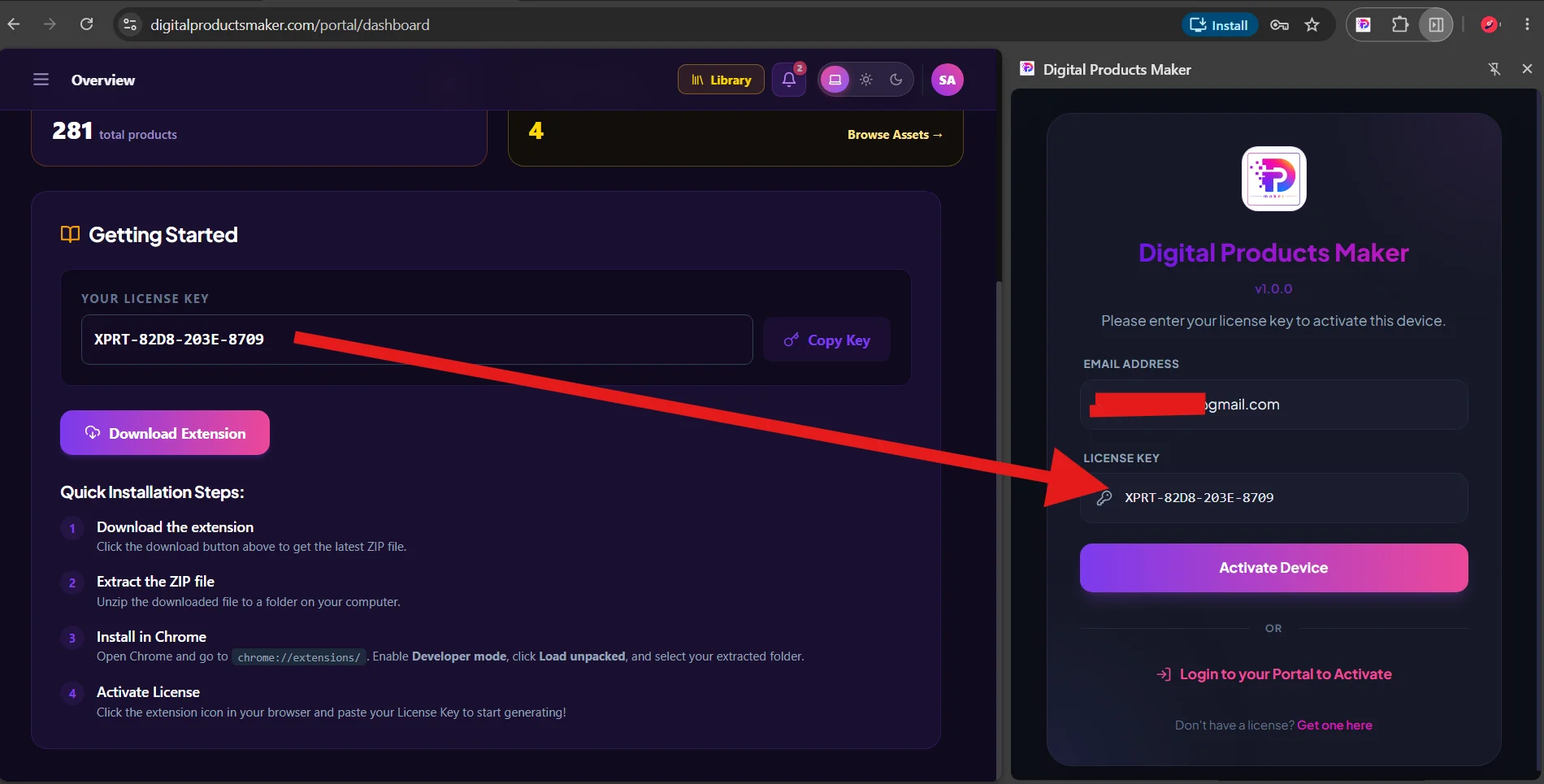
If you have a license key (a long code) and a registered email:
- Open the extension from the browser bar.
- In the activation screen, enter your Email Address used during purchase.
- Copy and paste your License Key into the second field.
- Click Activate.
- The system will connect to our servers to verify the plan. If valid, your device will be successfully activated.
🔒 How Does the Security System Work?
When you activate the tool, a security signature (HMAC Signature) is generated that binds your license to the current device (Device UUID). This ensures account safety and prevents unauthorized use.
[!WARNING] Note on Multiple Devices: Your subscription allows a certain number of devices. If you try to activate on a new device and exceed the limit, a device management screen will ask you to Unbind an old device before activating the new one.
🎯 What Happens After Activation?
Once verified, you will gain access to the main dashboard, which includes:
- Generator: To generate digital products.
- Tools: Access cost calculators and KDP print quality checks.
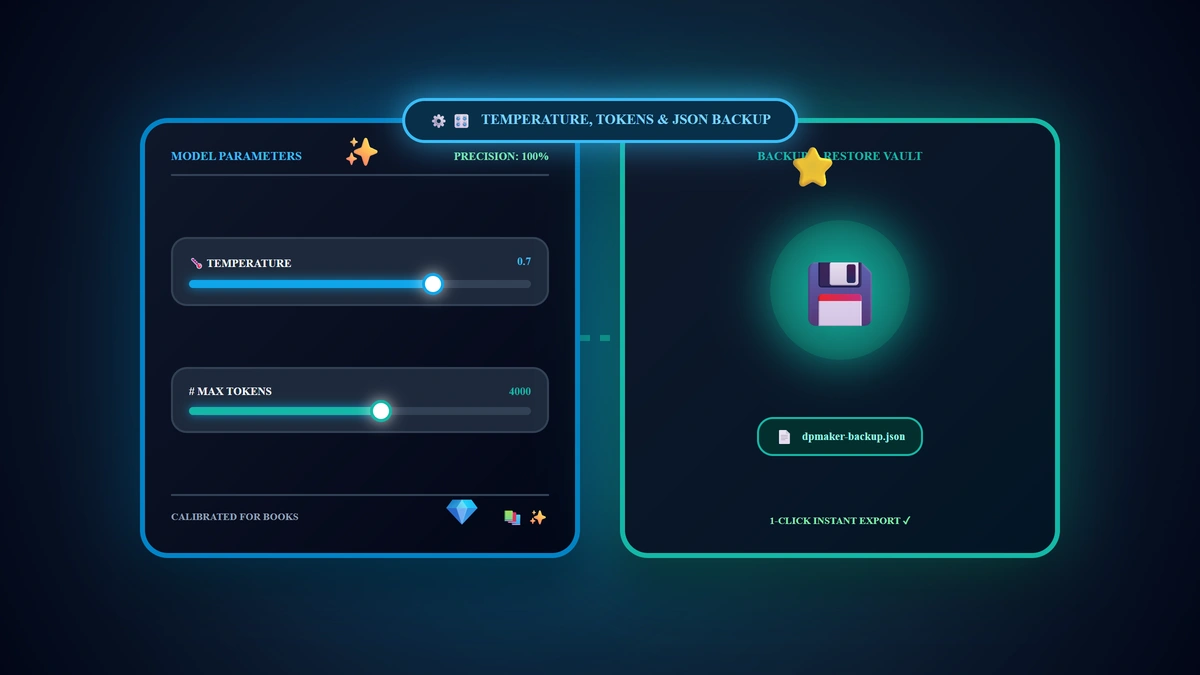
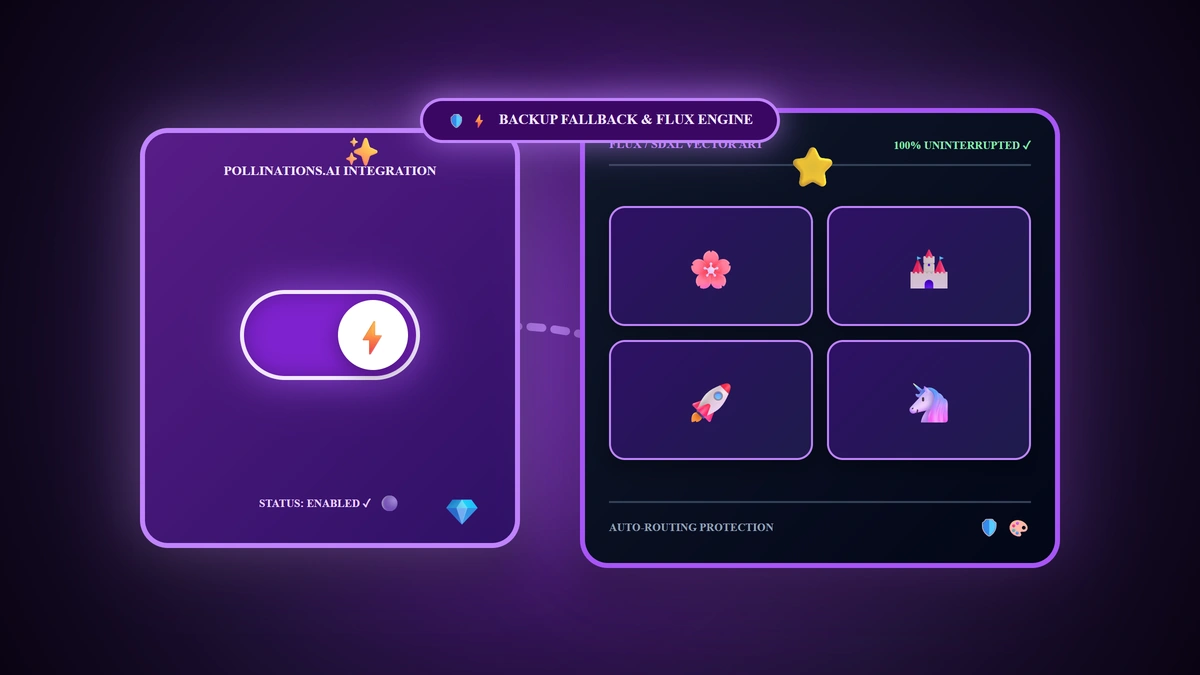
- Settings: To monitor your remaining plan limits and configure your AI provider.