At Digital Products Maker, we believe in complete transparency and giving our creators total control over their billing and account settings. If you ever decide to pause or cancel your subscription, you can easily do so in under a minute directly through the authenticated Stripe Customer Portal—without waiting for support tickets or jumping through hidden hoops.
In this step-by-step visual walkthrough, we cover the exact cancellation path, what happens to your generated assets and quotas, and how you can reactivate whenever you are ready.
📌 Quick Highlights:
- Estimated Time: Under 60 seconds.
- Security: Processed directly via Stripe's encrypted Customer Billing Portal (256-bit SSL).
- Access Continuation: Your subscription and all creator quotas remain 100% active until the end of your current billing cycle or trial period.
- Asset Protection: All digital products, eBooks, covers, and templates created remain safely stored in your account.
Step-by-Step Cancellation Guide
Follow these 4 simple steps to cancel your auto-renewal:
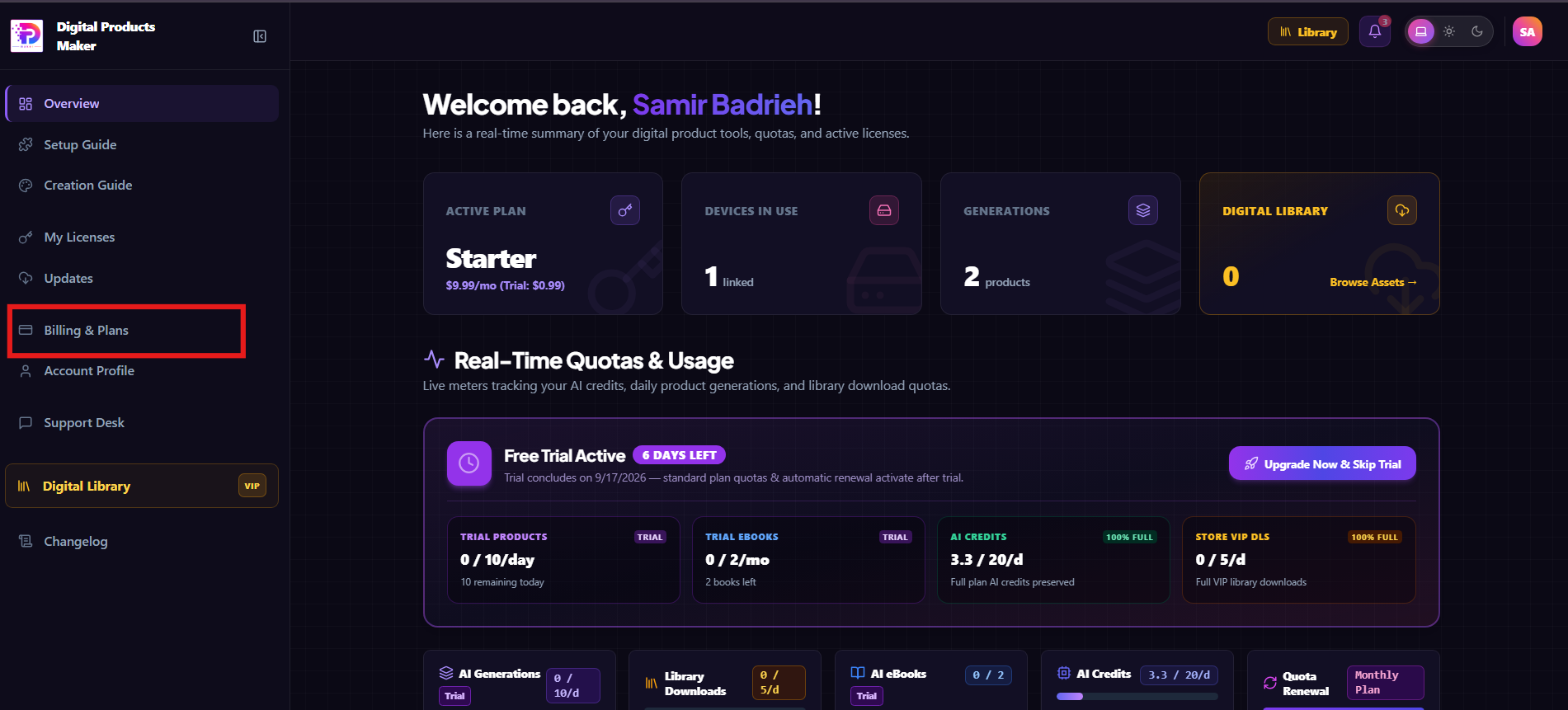
Step 1: Open Billing & Plans from the Sidebar
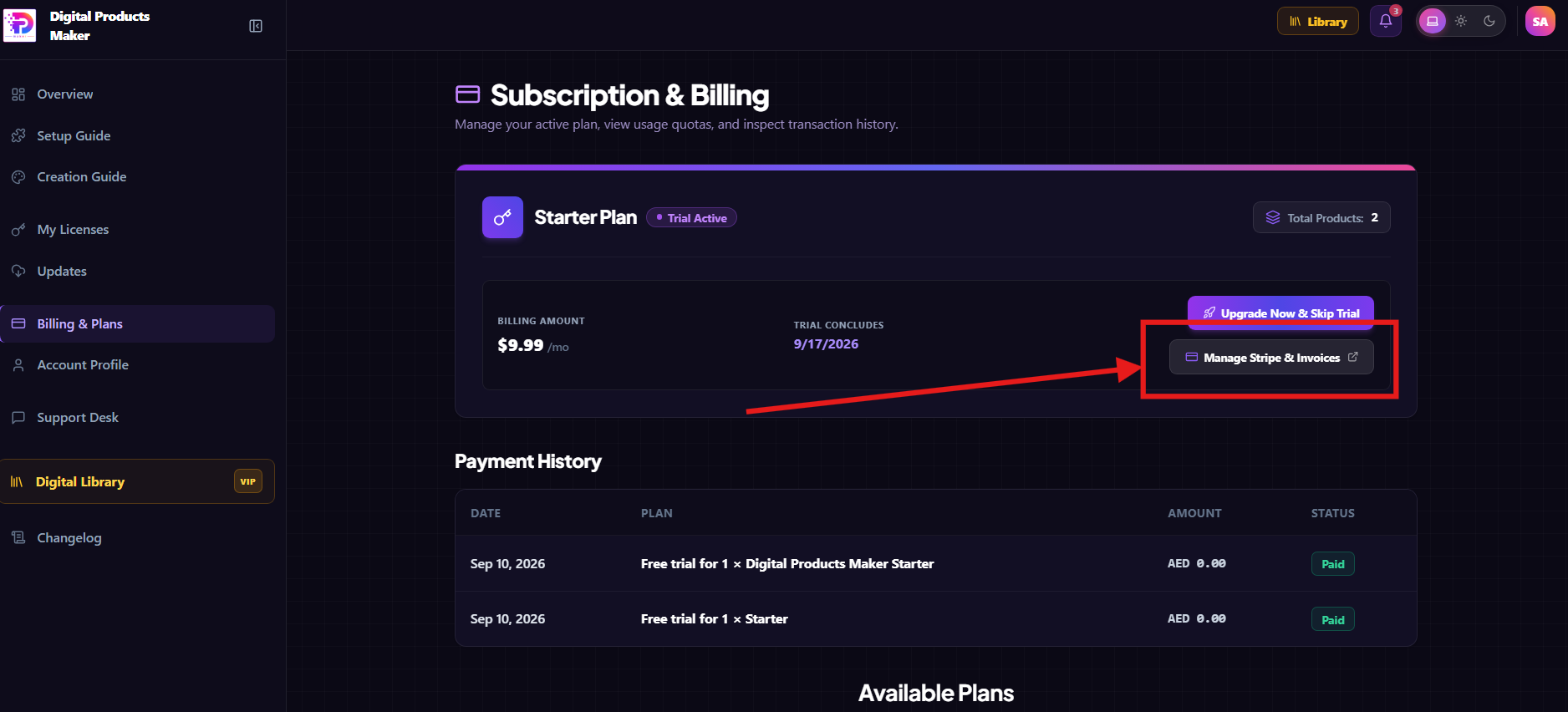
Log in to your Digital Products Maker dashboard. In the left navigation menu, click on the Billing & Plans tab:
Step 2: Access the Stripe Portal (Manage Stripe & Invoices)
On the Subscription & Billing page, you will see your active plan details (such as Starter Plan) and your next billing or trial conclusion date.
Click on the purple button labeled 💳 Manage Stripe & Invoices ↗:
Step 3: Click "Cancel subscription" in Stripe
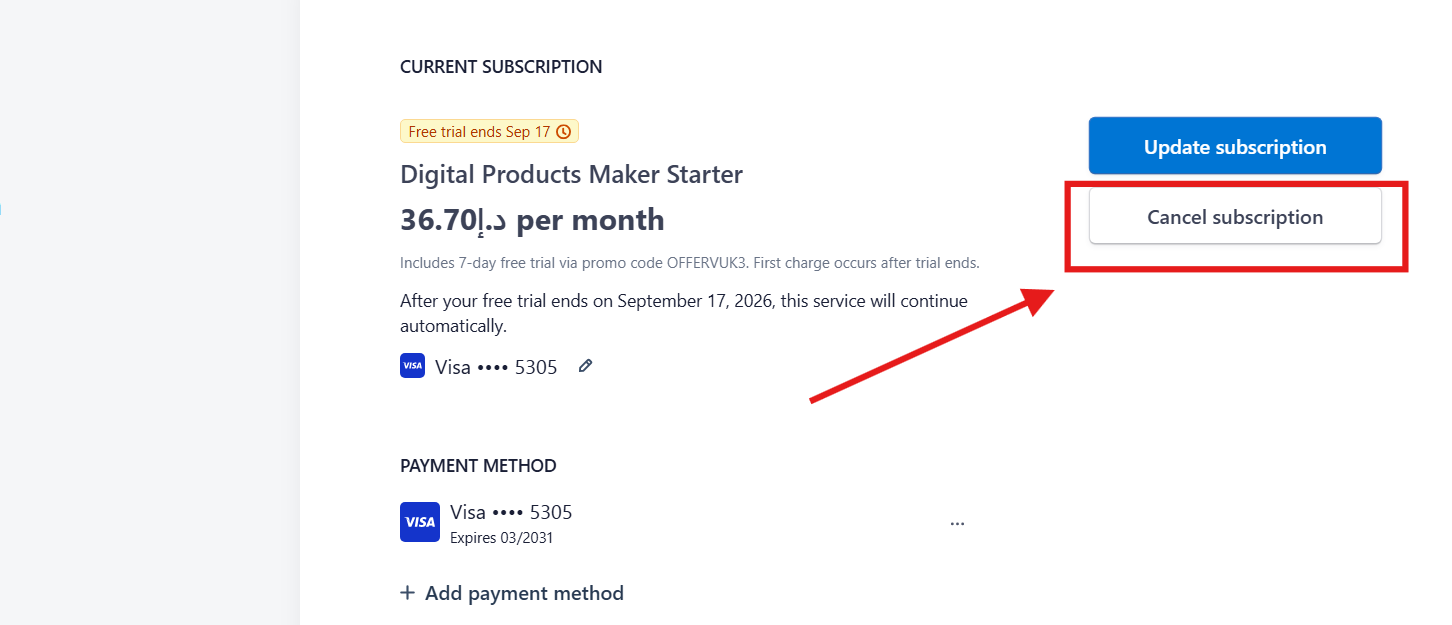
Inside the secure Stripe Customer Portal, your active subscription tier, renewal fee, and payment method will be displayed.
Right below the blue update button, click on Cancel subscription:
Step 4: Confirm Cancellation (Continue to cancellation)
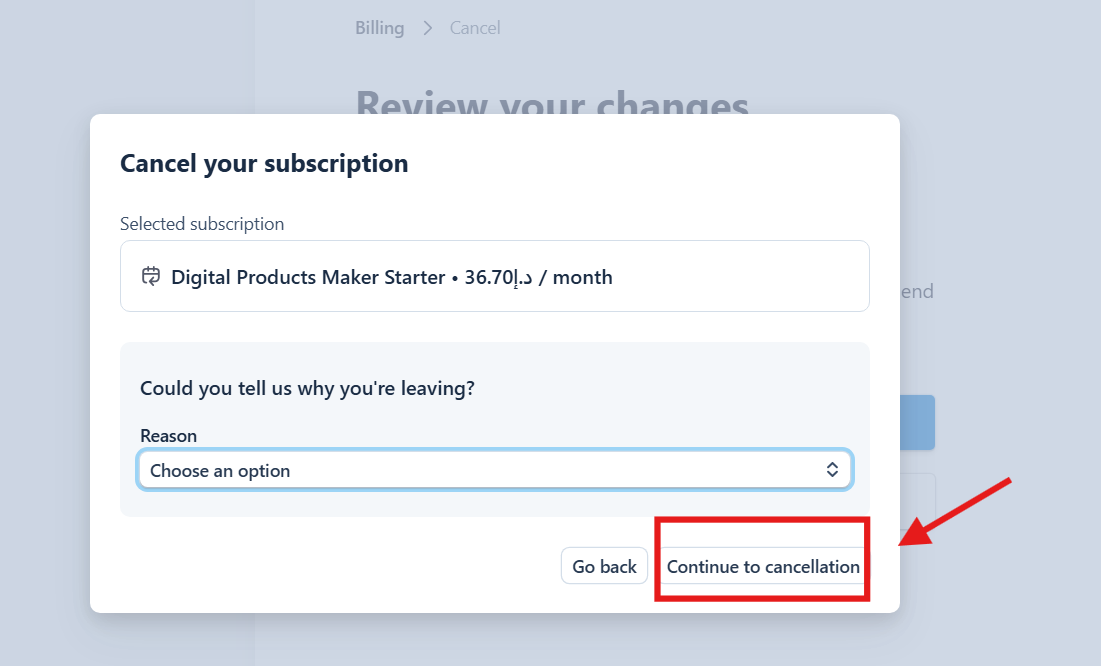
A confirmation modal will appear titled Cancel your subscription. You can optionally select a reason from the dropdown menu to help us improve.
Finally, click the red-highlighted Continue to cancellation button at the bottom right:
Once clicked, Stripe will immediately confirm the cancellation and send an official confirmation email to your registered address.
What Happens to Your Account After Canceling?
| Feature | Post-Cancellation Status |
|---|---|
| Account Quotas | Fully functional with zero interruptions until the final second of your current paid/trial cycle. |
| Future Charges | Automatic renewals are immediately disabled; you will never be charged again. |
| Created Products & Assets | Preserved permanently in your account library with full commercial licensing intact. |
| Reactivation | Can be resumed at any time with a single click without losing historical progress. |
Frequently Asked Questions (FAQ)
Will my access be revoked immediately?
No. You retain full access to all AI generators, daily production quotas, and the VIP Digital Library until your prepaid billing period or 7-day trial officially concludes.
Are there any cancellation penalties or fees?
None whatsoever. You can cancel at any time with zero hidden costs.
Can I resume my subscription later?
Yes! Simply navigate back to Manage Stripe & Invoices and click Renew subscription to resume your active creator tier whenever you are ready.