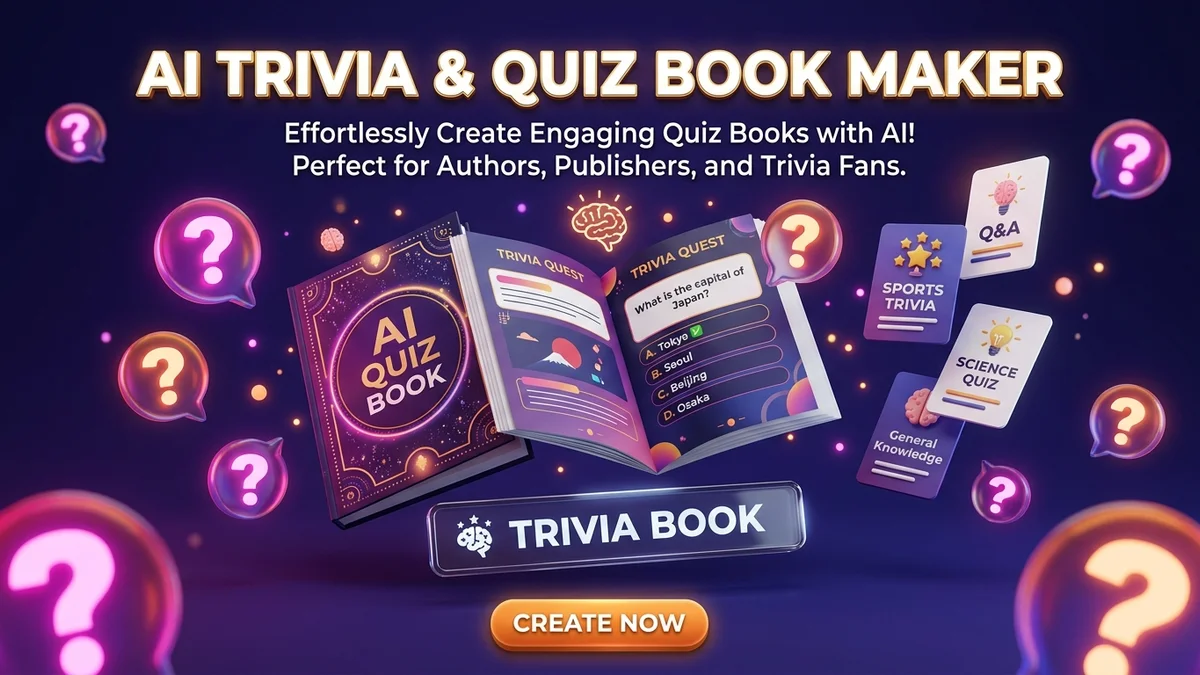
How to Create a Trivia Book in 5 Minutes for Sale?
Trivia Books are incredibly popular on platforms like Amazon KDP, where families buy them for game nights and schools use them for educational activities.
Instead of spending days researching thousands of questions and verifying answers, you can now use the Trivia Book tool on the Digital Products Maker platform to generate a fully formatted book with a single click.
Step One: Accessing the Tool
- Log in to our platform.
- From the sidebar, select the Books & Written Content (Books) section.
- Click on the Trivia Book option.
Step Two: Customizing the Book Content (Setup)
Here you will direct the AI on the type of questions you want:
- Topic: Enter the broad subject. For example: "World History", "Animal Kingdom", or "Classic Cinema".
- Niche: Is this book targeted at a specific group? e.g., "Trivia for Kids aged 8-12" or "Hard trivia for experts".
- Language: You can request questions in "English", "Spanish", "Arabic", etc.
- Export Dimensions: The system offers two popular sizes (8.5x11 Page Layout) and (A4), both accepted by Amazon KDP and local print shops.
- Pages Count: Choose the desired number of pages. The system will automatically calculate the number of questions needed.
Once the settings are configured, click the Generate button.
Step Three: The Magic of Preview
As soon as the AI finishes, a fun interactive preview page will appear:
- Questions and Options: Each question is formatted with multiple choices.
- Reveal Answers Button: You can click this interactive button to highlight the correct answer for each question.
- Fun Fact: An exclusive feature in our tool! When revealing the correct answer, you might notice an additional "Fun Fact" added below the question, boosting the educational value of your book!
Step Four: Exporting
Click the Export as PDF button. Within seconds, the book will be saved to your device, fully formatted, and ready for print or to be uploaded for sale online as a unique and profitable digital product!