Account Security Guide: Setting Up Two-Factor Authentication (2FA) & Fast Extension Activation
Your Digital Products Maker account gives you access to commercial-grade AI product generators, high-value VIP templates, and cloud generation credits. Protecting your account with strong security credentials ensures your licenses and business assets remain secure.
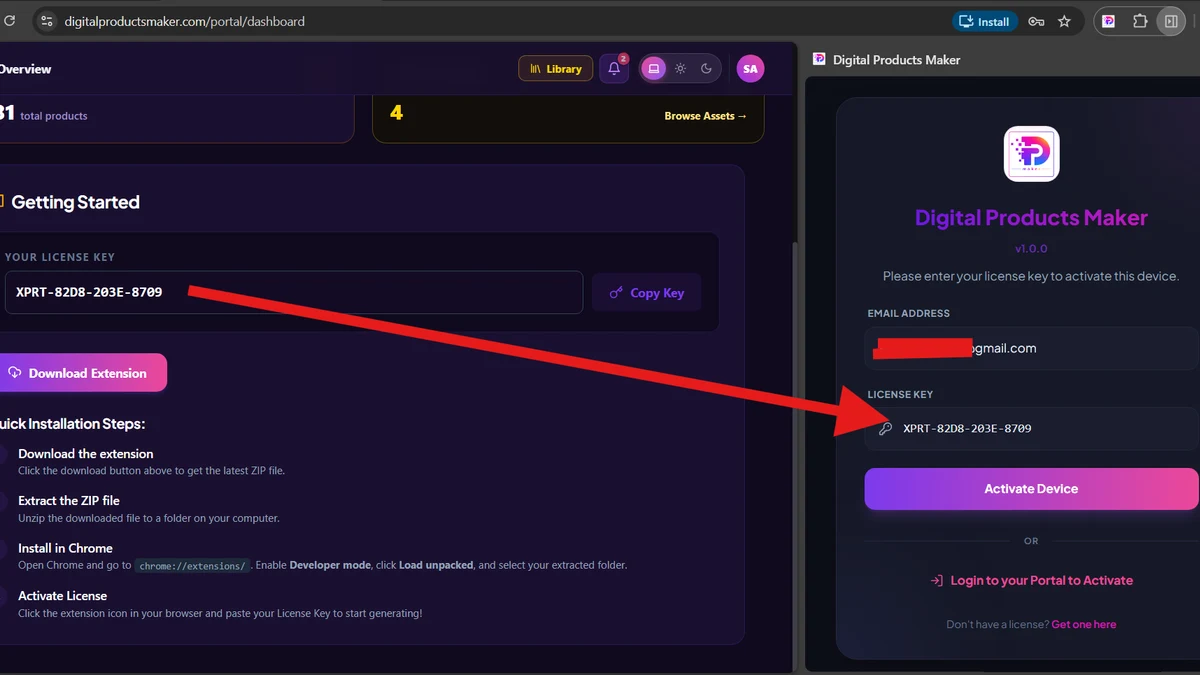
In this guide, you will learn how to enable Two-Factor Authentication (2FA) for your member account, and how to use the 1-Click Magic Link to activate your Chrome extension instantly without manually typing license keys.
🔒 Why You Should Enable Two-Factor Authentication (2FA)
Two-Factor Authentication adds an indispensable second layer of defense. Even if someone discovers your password, they cannot access your portal or download your VIP assets without the time-sensitive code from your mobile phone.
Supported Authenticator Apps:
- Google Authenticator (iOS & Android)
- Microsoft Authenticator (iOS & Android)
- Authy (iOS, Android, Desktop)
- 1Password / Apple Keychain
📱 Step-by-Step: How to Enable 2FA on Your Account
- Open Your Profile: Log in to your Customer Portal and click on the Profile / Security tab.
- Click "Enable 2FA": You will see a dedicated Two-Factor Authentication setup card.
- Scan the QR Code:
- Open your favorite authenticator app on your phone.
- Tap the + icon and scan the QR code displayed on your screen.
- Enter Verification Code:
- Type the 6-digit verification code generated by your mobile app.
- Click Verify & Enable.
- Save Your Recovery Info: Once verified, 2FA is active immediately! Every subsequent login will prompt you for your 6-digit code.
⚡ Fast 1-Click Extension Activation (Magic Link)
If you have installed the Chrome extension and want to activate it without manually copying and pasting license keys:
- Log in to the Customer Portal in your Chrome browser.
- Go to the Licenses tab.
- Next to your active license, click the "⚡ 1-Click Activate Extension" button.
- The portal will communicate with your installed Chrome extension and authenticate your device automatically.
- Within 2 seconds, your extension will display a green "Activated & Ready" badge!
🛡️ Quick Security Checklist for Creators
- Use a Unique Password: Do not reuse passwords from other platforms.
- Activate 2FA: Keep your authenticator app linked to your primary smartphone.
- Check Connected Devices Regularly: Visit your Licenses tab once a month and unbind any old or unused computers.