How to Create a Ready eBook in 5 Minutes?
Have you ever dreamed of writing your own book but struggled to start? Or maybe you want to create a Lead Magnet to collect emails from potential clients? Thanks to Digital Products Maker, authoring eBooks has never been easier.
In this detailed guide, we will explain exactly how to use the "AI eBook Generator" tool to create a complete, professional, and ready-to-sell book in less than 5 minutes!
What is the AI eBook Generator?
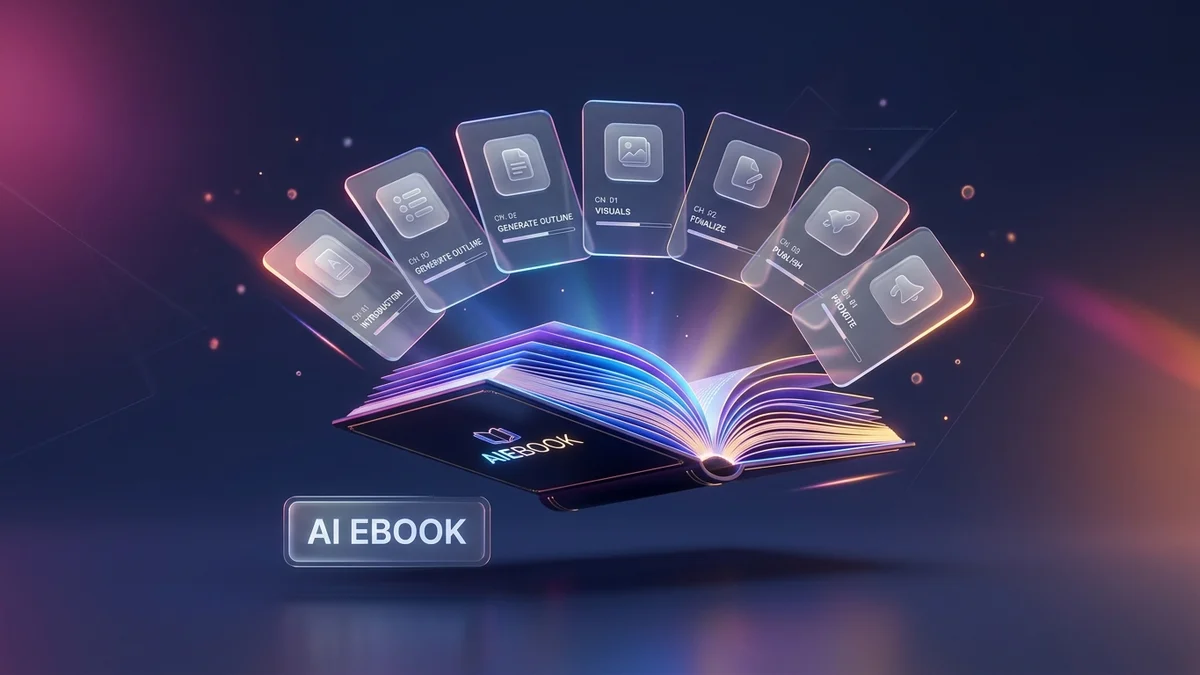
It is an advanced tool specifically designed to help you author books from the initial idea all the way to the final PDF file. The tool doesn't just write text; it designs the cover, formats chapters, and allows you to add charts and graphs with a click of a button.
Step One: Accessing the Product Maker
- Log into your account on the platform.
- From the sidebar or the products page, look for the Books & Written Content section.
- Click on the AI eBook Generator tool to start.
Step Two: The Setup Panel
When you open the tool, you will see the Setup Panel. This panel is the brain of the tool, through which the AI understands exactly what you want. Let's explain each field in detail:
- Core Topic: Here you write the general idea of your book. For example: "Digital Marketing" or "Weight Loss".
- Niche: If you are targeting a specific audience, write it here to make the content more precise. For example: "Digital Marketing for Dentists".
- Purpose:
- Educational: To explain concepts and lessons.
- Marketing / Lead Magnet: To attract clients and sell a service.
- Entertainment: For stories and fiction.
- Tone: How do you want the book to sound? Professional, Friendly, or Humorous.
- Book Type:
- Educational Textbook
- Self-Help / Motivation
- How-To Guide
- Fiction / Story
- Business / Finance
- Children's Book
- Chapter Count: Choose how many chapters you want (from 1 up to your plan's limit).
- Chapter Length:
- Short: 2-3 paragraphs, excellent for quick booklets.
- Medium: 4-6 paragraphs.
- Long: 7+ paragraphs for in-depth books.
- Language: You can generate the book in any language! Just type "English", "Spanish", or "Arabic".
Pro Tip: Use the "Additional Notes" field to give any special instructions to the AI, such as: "I want the book to include case studies from the local market."
After filling in the settings, click on the Generate Outline button.
Step Three: Reviewing the Outline
Now, the AI has proposed book chapters based on your settings.
- You can edit any chapter title or description.
- You can change the order of chapters using the movement arrows.
- You can add new chapters or delete ones you don't like.
Once you are satisfied with the table of contents, click Generate Full Book for the tool to start writing the actual content.
Step Four: Formatting and Design (Builder)
Now your book is written and segmented! You will transition to the Builder interface which contains everything you need to beautify the book:
1. Cover Settings
From here, you have full control over your book's cover:
- Background Type: Choose a solid color, a magical gradient, or even upload an image from your device.
- Text Customization: Edit the book title, subtitle, and author name, select beautiful fonts (like Plus Jakarta Sans, Playfair Display), and change text colors.
2. Choosing a Style Template
No need to worry about internal page formatting. The tool provides ready-made templates like:
- Minimalist Slate: Clean and spacious design with modern fonts.
- Classic Novel: The elegant look of classic books and novels.
- Modern Tech: A contemporary design suited for tech and business books.
- Bold Deco: Bold design with strong colors.
3. Inserting Resources and Charts
Inside any chapter, you can click a button to add a Chart (like Bar or Pie charts) to visualize data, or add a 'Key Takeaways' section to summarize the chapter.
4. Export Settings
- Page Size: Choose A4 or Letter.
- Page Numbers: Enable or disable numbering and set its position (bottom right, bottom center, etc.).
- Table of Contents (ToC): Generate an automatic index at the beginning of the book.
Final Step: Exporting
Once you finish your edits, click on Export PDF. In mere seconds, you will receive a high-quality PDF ready to be sold on platforms like Gumroad and Amazon KDP, or to be uploaded to your personal website.
Frequently Asked Questions (FAQ)
Can I edit the generated text? Yes, absolutely! You can enter any chapter and edit the text freely, or even ask the tool to regenerate a specific chapter.
Do I own the intellectual property of the book? Yes, the book you generate is 100% yours, and you can sell it and profit from it.
Start now and turn your ideas into stunning eBooks with the click of a button!
Get Started Now
Are you ready to try the tool yourself? You can start right away by visiting Digital Products Maker and exploring all the features explained in this article!