Customer Portal Guide: Managing Your Subscription, Licenses, and Device Transfers (Unbind Device)
The Customer Portal (digitalproductsmaker.com/portal) is your central self-service dashboard for managing your Digital Products Maker account. Whether you need to view your active subscription plans, check your daily generation limits, download the latest software updates, or transfer your license to a new laptop, everything is easily accessible in one place.
In this tutorial, you will learn how to navigate the portal, manage your connected devices, and use the Unbind Device feature to move your license between computers smoothly.
🔑 How to Log In to Your Customer Portal
When you purchase a subscription or lifetime license for Digital Products Maker, your member account is created automatically:
- Visit the portal login page at digitalproductsmaker.com/portal.
- Enter the Email Address you used during checkout.
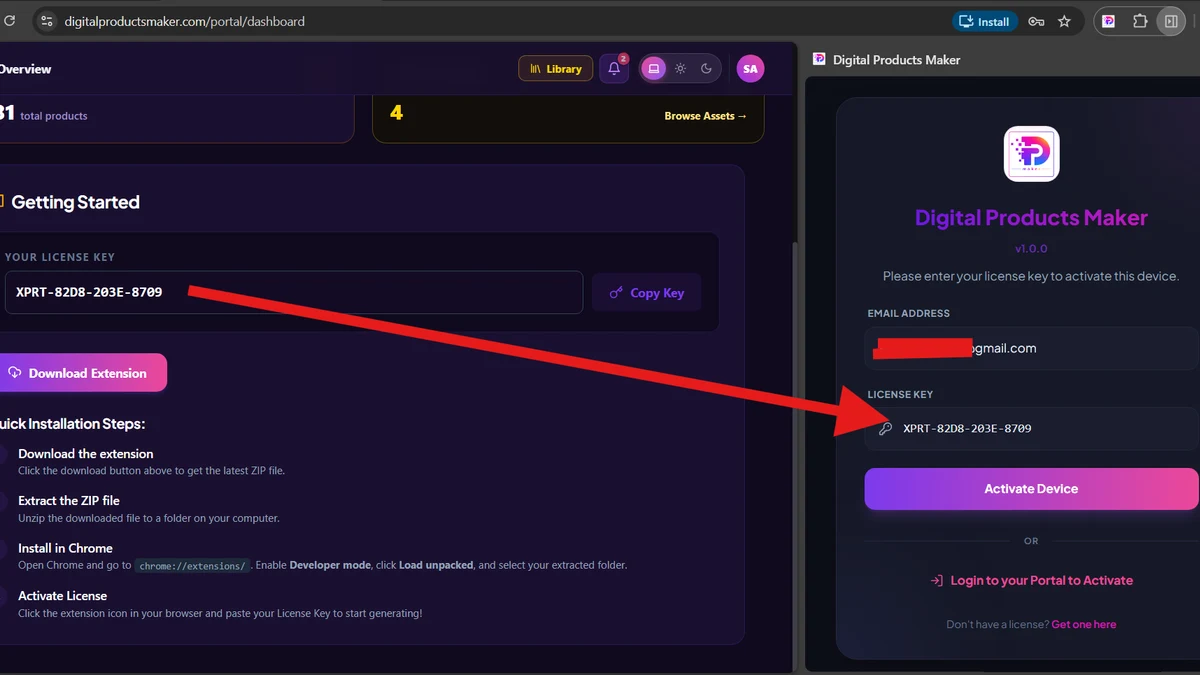
- Enter your Password (or enter your License Key if you are activating your account for the first time).
- Click Log In to access your member dashboard.
💻 Managing Your Connected Devices
Depending on your subscription tier, your license allows simultaneous activation on multiple computers:
- Starter Plan: 1 Active Device
- Pro Plan: Up to 3 Active Devices
- Lifetime Plan: Up to 5 Active Devices
Inside the Licenses tab of your portal, you can see a live list of all computers currently connected to your license key, including the browser name, operating system, and the date it was activated.
🔄 How to Transfer Your License to a New Computer (Unbind Device)
If you buy a new computer, upgrade your laptop, or reformat your hard drive, you don't need to contact support to transfer your license. You can do it yourself in seconds using the Unbind Device button:
- Log in to the Portal on any device or smartphone.
- Navigate to the Licenses tab.
- Locate the license key and look at the Active Devices list.
- Click the red Unbind (Disconnect) button next to the old computer you want to remove.
- Confirm the disconnection. That device slot is instantly freed up!
- Open Chrome on your new computer, open the Digital Products Maker extension, and enter your license key to activate your new device immediately.
📦 Downloading Official Software Updates
To ensure you always have access to the latest product generators and bug fixes:
- Go to the Downloads tab in your portal.
- Download the latest official extension.zip archive.
- Unzip the file and load it into your Chrome extensions page (
chrome://extensions) via Load unpacked.
🛡️ Best Practices for License Management
- Keep Your License Key Safe: Never share your license key on public forums or social media.
- Link Multiple Licenses: If you purchase an additional license or upgrade your plan, you can link it directly under your existing account.
- Self-Service Freedom: You can unbind and re-activate devices as often as needed without delays.